
File Transcription
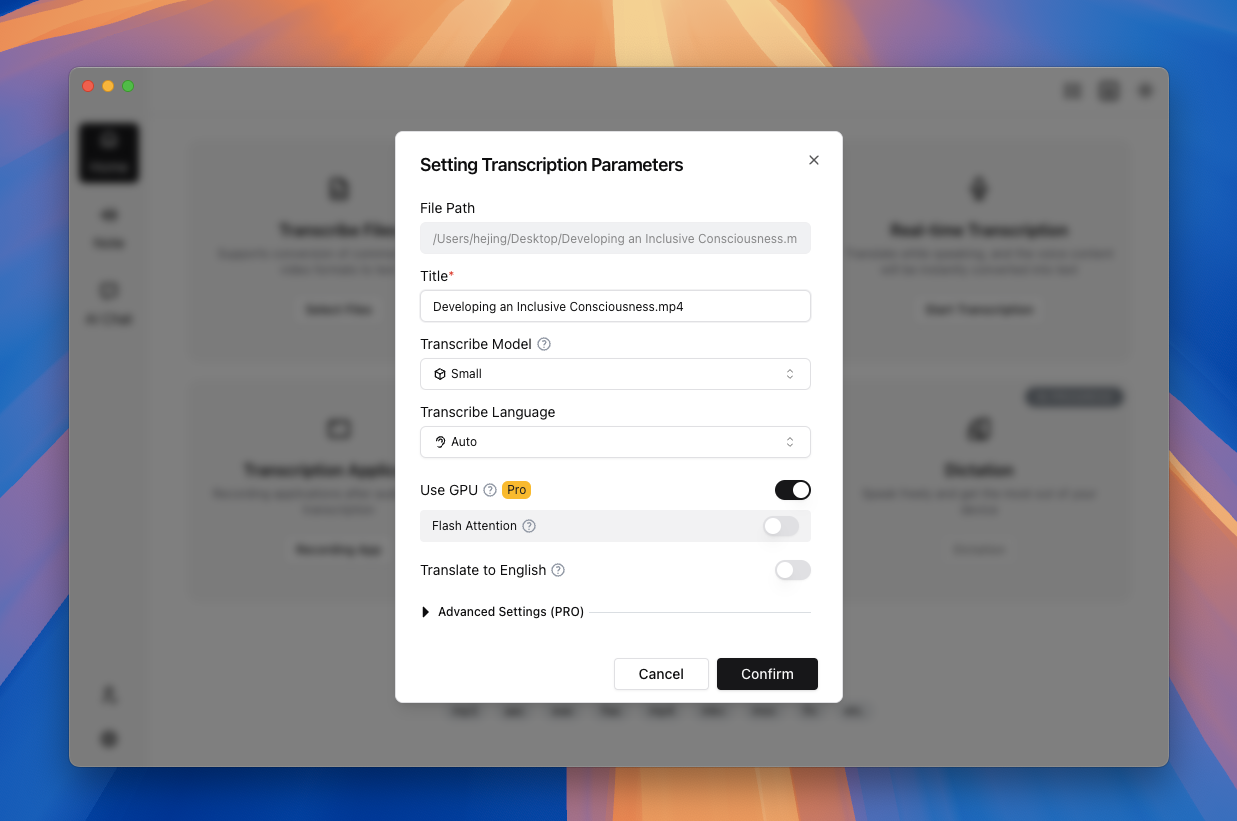
TODO (Screenshot Replacement): File transcription parameter dialog (App 2.0) Include: file queue list, model/language selectors, GPU toggle, translation toggle, and batch apply button. Suggested filename:
file-transcription-dialog-v2-en.png
Scope
File Transcription handles local media transcription workflows:
- Import (drag-and-drop / file picker)
- Model and language selection
- Queue execution for single or batch tasks
- Note-page editing and export
It does not handle URL downloading. Use Link Transcription for URL-based input.
Use Cases
- Meetings, interviews, lectures
- Bulk processing of podcast/live replay assets
- Subtitle and text output pipelines
Steps
- Click
Transcribe Fileson Home or drag files into the dropzone. - Choose model, language, GPU option, and translation option.
- For multiple files, review batch parameter configuration.
- Start transcription and monitor queue status.
- Open results in the Note page for editing and export.
Supported file formats
- Audio: MP3, WAV, M4A, FLAC, AAC
- Video: MP4, AVI, MOV, MKV, FLV
Actual support can vary by codec/container. The in-app file picker is the source of truth.
Parameter tips
- Lightweight tasks: Tiny/Base + auto language
- Balanced quality: Small/Medium + explicit language
- Higher quality: Large-v3 or Large-v3-Turbo + GPU
- For unstable output, tune Advanced Parameter Transcription
Whisper and Sherpa parameter overview
File Transcription supports two engines:
- Whisper (latest flagship large model): one of the most advanced general-purpose transcription models, suitable for meetings, interviews, courses, and other mixed scenarios when quality matters most.
- Sherpa realtime models (lightweight, CPU-friendly): no GPU dependency, runs reliably on mid-range hardware, and is ideal for fast turnaround or large-volume baseline transcription.
Common Whisper parameters (File Transcription)
| Parameter | What it does | When to tune |
|---|---|---|
| Scene preset | One-click bundle of VAD, segmentation, and context knobs | Start from preset, then tune 1–2 knobs |
| Segment transcription | Transcribe only part of the timeline | When only a specific clip matters |
| Offset range | Start/end time window | Use together with Segment transcription |
| Decoding strategy | Greedy is faster, Beam Search is usually more stable | Try Beam Search when substitutions are frequent |
| No-speech threshold | Controls silence/noise filtering aggressiveness | Increase when hallucination appears |
| Translate to English | Outputs English transcription | For English script/subtitle delivery |
Common Sherpa parameters (File Transcription)
| Parameter | What it does | When to tune |
|---|---|---|
| VAD scene preset (general/dialogue/speech/meeting/course/noisy/custom) | Controls segmentation style and sensitivity | Switch preset first per content type |
| CPU threads | Controls decoding parallelism | Increase on multi-core idle machines |
| Min speech/silence duration | Controls segment trigger threshold | Tune when clips are too fragmented or missed |
| Min/max segment duration | Controls lower/upper segment bounds | Tune when segments are too short or too long |
| Pre/Post padding and merge gap | Improves natural boundaries | Tune when heads/tails are cut off |
Scene preset recommendation
- general: default baseline for most files.
- dialogue: fast multi-speaker exchanges, shorter chunking.
- speech/course: long single-speaker narration, longer chunking.
- meeting: multi-speaker meetings with pauses.
- noisy: noisy environments with stronger false-positive suppression.
- custom: only when presets cannot fit; change 1–2 items per round.
Term Explanations
- Batch parameters: one shared parameter set applied to multiple files.
- Translate to English: transcribe source speech and output English text; not a bilingual side-by-side mode.
- Subtitle export (SRT/VTT): time-coded formats for video players and editing tools.
Practical Workflow (Less Rework)
- Start with 1–2 sample files before launching full batch jobs.
- Validate text quality first, then optimize throughput and model size.
- Use consistent titles (date/project tags) for easier downstream search.
- Test one export sample before processing the entire batch.
Troubleshooting Order
- Check task phase first (queue/model/runtime/export).
- Check storage/path writeability and free space.
- If GPU fails, verify CPU baseline first, then debug drivers/runtime.
- Re-encode malformed media when container/codec issues are suspected.
Real Scenario (Course Replay Archive)
A common case is processing 10+ lecture replays into searchable notes within a short deadline.
- Build a baseline on one sample file (model/language/export format).
- Launch batch only after quality is validated.
- Normalize terms in Note first, then generate section summaries with AI Chat.
Common Mistakes and Better Alternatives
- Mistake: mixing different-language media in one batch
Better: split batches by language to reduce auto-detection drift. - Mistake: changing parameters while a batch is running
Better: keep one parameter profile per batch, then run A/B in the next pass. - Mistake: treating raw export as final output
Better: run a quick editorial pass in Note before distribution.
FAQ
Q: Is batch transcription available to all plans?
A: Availability depends on account entitlements. Typical free-tier usage is single-file-first.
Q: How can I speed up large batches?
A: Use GPU, set practical concurrency, and avoid unnecessarily large models.
Q: Why does transcription stall?
A: Common causes are missing model files, low disk space, incompatible GPU setup, or malformed media files.
Limitations
- Advanced settings and some models may require activated subscription features.
- Large models and high concurrency are hardware intensive.
- Some uncommon formats may require pre-conversion before import.
- Platform: Windows and macOS share the same workflow, but GPU backend and permission flows differ.
Contact us